
Building a Wireless Bluetooth Controlled Robot Car with Arduino: A Complete Instruction
Unlock the exciting world of robotics as you learn to build a wireless Bluetooth controlled robot car with Arduino! This comprehensive guide will take you step-by-step through the process, from assembling the components to coding the controls. Get ready to bring your robotic vision to life!
INTRODUCTION
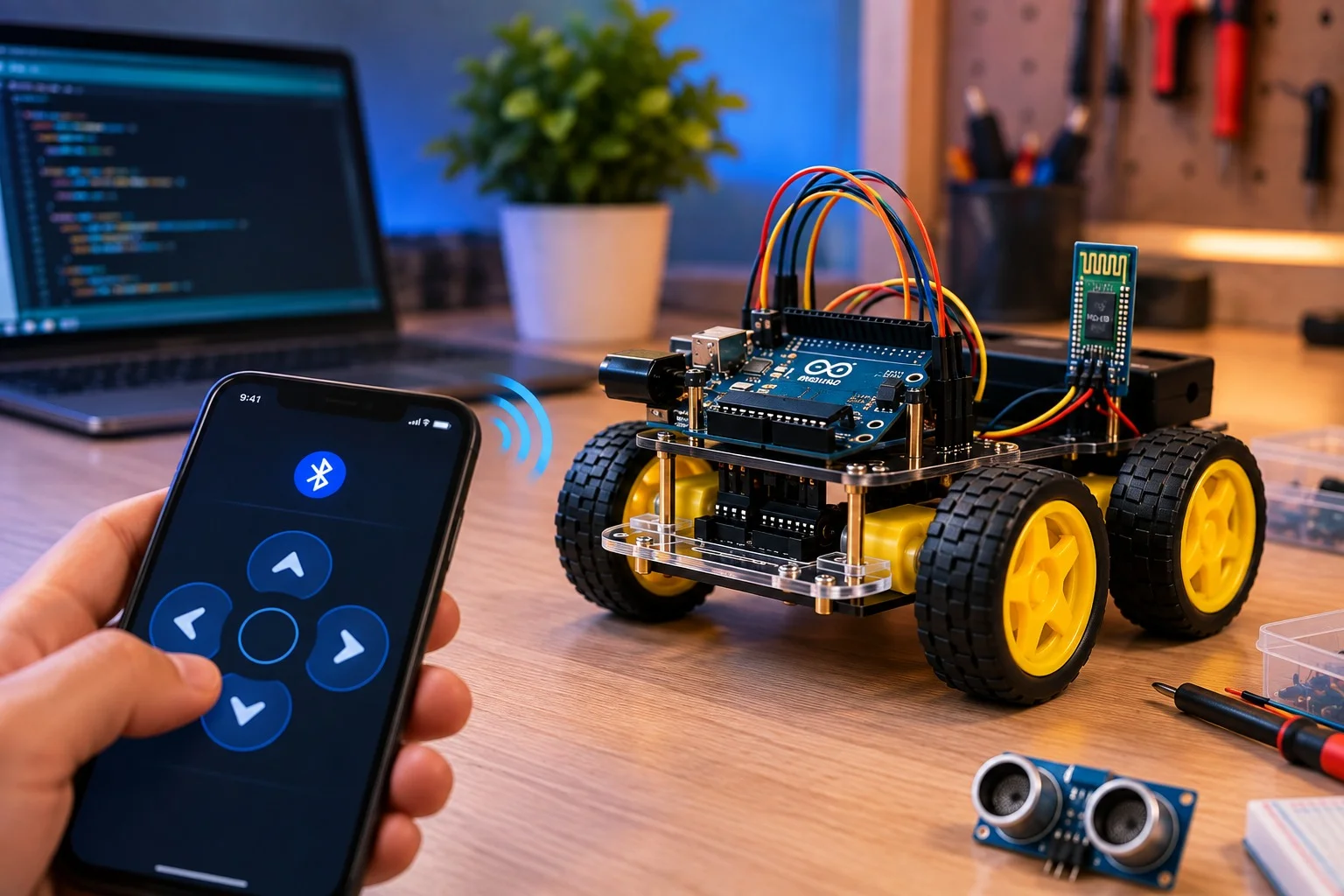
If you’re interested in robotics technology or you just want to make a robot easily controllable, please read. This is a full-fledged tutorial that allow you to go through all the steps to build a Robot Vehicle that can accept commands from a smartphone over Bluetooth, and even interact with a custom Android app.
Step 1: Making the Body of the Robot
This robot's structural strength is the body upon which all the electrical components sit. To make a lightweight and rigid structure:
Less expensive than cardboards, sunboards are as strong as cardboards.
Using a craft knife or laser cutter, cut out the following pieces:
Two rectangles identical pieces 10.5 x 13.5 cm to become the base and top plates.
Suggestions include the addition of 2 strips of 7.5 x 2.3 cm acting as side supports.
1) One length of 2 strips of 11.5 x 2.3 cm to act as front and rear supports.
1 strip of 4.3 x 2.3 cms can be used for the battery compartment.
2x motor mounts, 2 strips of 10.5 x 3.5 cm.
Now you can glue, screw or hot glue the components together to finish the chassis.
When working through construction, it is worth cutting extra pieces for easy replacement.
Step 2: Configuring the Motors
All the four motors in parallel were connected, from the left, right and across each pair of the motors, in pairs.
It allows to connect some pins in cross wiring to connect.
The video or circuit schematic may also be supported in this section.
Step 3: Connect the Motors to Motor Driver.
With L298N Module:
Use insert motors on the screw terminal of the driver.
The controls are determined in polarity and direction sequence through the inputs of the Arduino.
Step 4: Arduino to Motor Driver Connection
Design how the motor driver is to be attached on the Arduino Uno board:
Connection of female bergstrips, male bergstrips and relimate connectors.
Experiment using the removed connection sockets or you can try the Arduino Protoshield, it has everything already soldered in place.
Step 5: Introduction of RGB Neopixel LEDs
RGB Neopixel LED’s can be used to decorate your robot to enhance the coolness and attractiveness of it.
Fix the Led's on the Arduino Board.
Change colors of the LEDs using Android app developed for the developer of this project.
Step 6: Custom Android Application Design for the User
With the help of MIT App Inventor:
When building the interfaces, the Bluetooth capability must be integrated to so that it can send commands.
This allows us to move the robot, direct the LEDs and coloring on the robot, and to create patterns with them.
Step 7: Circuit Diagram along with Assembly
See below the complete circuit diagram:
Make sure that each connection is predetermined in construction is persistent and guarantees no one will compromise it anytime soon.
Again make sure the motor controller, Arduino, and Bluetooth are well connected together.
Step 8: Tuning and Adjustment
Next, I want to perform some movement tests for the robot and check the LED in the robot.
Realign motors and the Android application.
Components Required:
An Arduino Uno.
An L298N Motor Driver.
4 DC motors.
Solar boards.
RGB Neon pixcels LED.
To start with, we will need a bluetooth module for arduino.
An android phone.
Was the software MIT App Inventor.
Jumping wires.
Bergstrips.
Relimate connectors.
Tips and Variations:
This issue can mitigate by switching to a more complex motor driver that could better improve precision.
You can also integrate any sensors for line following or for obstacle avoidance.
Look at other types of Arduino boards or other microcontrollers.
With the help of procedures above, you have built everything yourself and made a fully operational Bluetooth controlled wireless robot car called AKB01 and improve your robotics skills and knowledge.
Robotic code that is Bluetooth Controlled
The code for the Arduino basis Bluetooth controlled robot is somewhat complicated. The reason we split the total code into three parts was owing to this.
This circuit works very simple & easy to understand. To begin with, we have the Arduino as our circuit brains. We also have the Bluetooth module next. The Arduino that we are using as the software serial is connected to pin 13 and then pin 10 on the Bluetooth module. Moving on, we will be using pins 11,12,8, and 7 to connect our RGB leds WS2812B. Last of all we’re using pins 9, 6, 5 and 4 to attach the L298N motor driver IC which is driving our four motors. At the end of them all, we use a 9V battery to power it all up.
ArduinoL298N3IN19IN25IN36IN4VIN+5VGNDGNDArduinoHC0510Tx11Rx+5VVCCGNDGNDArduinoNeoPixel8Left LED7Right LED12Front LED Data13Back LED Data
The working of this circuit is very easy.
Arduino Code for Bluetooth Controlled Robot
The code for the Arduino, and Bluetooth-based robot is a little bit complicated, so we separate the total code into three separate files this way we can change things quickly in the code if needed.
Arduino_Bluetooth_Bot_main by ElectroGlobal
#include

SoftwareSerial mySerial(10, 11); // RX, TX

void setup() {

// Open serial communications and wait for port to open:

Serial.begin(9600);

mySerial.begin(38400);

while (!Serial) {

; // wait for serial port to connect. Needed for native USB port only

}

Serial.println("Sending AT...");

mySerial.write("AT");

if (mySerial.available() > 0) {

Serial.write(mySerial.read());

}

// set the data rate for the SoftwareSerial port

Serial.println("loop begins");

LED_setup();

}

char rcd = ' ';

int spd = 100;

unsigned long time_now = 0;

void loop() { // run over and over

if (mySerial.available()) {

rcd = mySerial.read();

Serial.write(rcd);

}

unsigned long time_now = 0;

if (rcd == 'O')

{

R_LED(1);

L_LED(1);

F_LED(1);

B_LED(1);

}

if (rcd == 'o')

{

R_LED(0);

L_LED(0);

F_LED(0);

B_LED(0);

}

if (rcd == 'X')

{ L_LED(1);

}

if (rcd == 'x')

{

L_LED(0);

}

if (rcd == 'P')

{

R_LED(1);

}

if (rcd == 'p')

{ R_LED(0);

}

if (rcd == 'W')

{ F_LED(1);

}

if (rcd == 'w')

{ F_LED(0);

}

if (rcd == 'U')

{ B_LED(1);

}

if (rcd == 'u')

{ B_LED(0);

}

if (rcd == '0')

{ spd = 80;

}

if (rcd == '1')

{ spd = 100;

}

if (rcd == '3')

{ spd = 120;

}

if (rcd == '5')

{ spd = 180;

}

if (rcd == 'q')

{ spd = 255;

}

if (rcd == 'F')

{ Forward();

time_now = millis();

while (millis() < time_now + 100) {}

}

else if (rcd == 'B')

{ time_now = millis();

while (millis() < time_now + 100) {}

Backward();

}

else if (rcd == 'I')

{ time_now = millis();

while (millis() < time_now + 100) {}

FdRight();

}

else if (rcd == 'J')

{ time_now = millis();

while (millis() < time_now + 100) {}

BkRight();

}

else if (rcd == 'R')

{ time_now = millis();

while (millis() < time_now + 100) {}

SharpRight();

}

else if (rcd == 'L')

{ time_now = millis();

while (millis() < time_now + 100) {}

SharpLeft();

}

else if (rcd == 'G')

{ time_now = millis();

while (millis() < time_now + 100) {}

FdLeft();

}

else if (rcd == 'H')

{ time_now = millis();

while (millis() < time_now + 100) {}

BkLeft();

}

else

Stop();

}

LED_Control

#include

#ifdef __AVR__

#include

#endif

#define F_LED_PIN    12 //Front LED

#define F_LED_PIXEL   6

#define B_LED_PIN    13  //Back LED

#define B_LED_PIXEL   6

#define R_LED_PIN    7 //Right LED

#define R_LED_PIXEL   1

#define L_LED_PIN    8 //Left LED

#define L_LED_PIXEL   1

Adafruit_NeoPixel F_LED_STRIP(F_LED_PIXEL, F_LED_PIN, NEO_GRB + NEO_KHZ800);

Adafruit_NeoPixel B_LED_STRIP(B_LED_PIXEL, B_LED_PIN, NEO_GRB + NEO_KHZ800);

Adafruit_NeoPixel R_LED_STRIP(R_LED_PIXEL, R_LED_PIN, NEO_GRB + NEO_KHZ800);

Adafruit_NeoPixel L_LED_STRIP(L_LED_PIXEL, L_LED_PIN, NEO_GRB + NEO_KHZ800);

void LED_setup()

{

#if defined(__AVR_ATtiny85__) && (F_CPU == 16000000)

clock_prescale_set(clock_div_1);

#endif

F_LED_STRIP.begin();

B_LED_STRIP.begin();

R_LED_STRIP.begin();

L_LED_STRIP.begin();

R_LED_STRIP.clear();

L_LED_STRIP.clear();

F_LED_STRIP.clear();

B_LED_STRIP.clear();

}

void R_LED(int a)

{

if(a==1)

{

R_LED_STRIP.clear();

R_LED_STRIP.setPixelColor(0, R_LED_STRIP.Color(0, 255, 255));

R_LED_STRIP.show();   // Send the updated pixel colors to the hardware.

}

else {

R_LED_STRIP.clear();

R_LED_STRIP.show();

}

}

void L_LED(int a)

{

if(a==1)

{

L_LED_STRIP.clear();

L_LED_STRIP.setPixelColor(0, L_LED_STRIP.Color(0, 255, 255));

L_LED_STRIP.show();   // Send the updated pixel colors to the hardware.

}

else

{

L_LED_STRIP.clear();

L_LED_STRIP.show();

}

}

void F_LED(int a)

{

if(a==1)

{

F_LED_STRIP.clear();

F_LED_STRIP.setPixelColor(0, F_LED_STRIP.Color(255, 255, 255));

F_LED_STRIP.setPixelColor(1, F_LED_STRIP.Color(0, 0, 50));

F_LED_STRIP.setPixelColor(2, F_LED_STRIP.Color(0, 0, 50));

F_LED_STRIP.setPixelColor(3, F_LED_STRIP.Color(0, 0, 50));

F_LED_STRIP.setPixelColor(4, F_LED_STRIP.Color(0, 0, 50));

F_LED_STRIP.setPixelColor(5, F_LED_STRIP.Color(255, 255, 255));

F_LED_STRIP.show();   // Send the updated pixel colors to the hardware.

}

else if(a==0)

{

F_LED_STRIP.clear();

F_LED_STRIP.show();

}

}

void B_LED(int a)

{

if(a==1)

{

B_LED_STRIP.clear();

B_LED_STRIP.setPixelColor(0, B_LED_STRIP.Color(255, 0, 0));

B_LED_STRIP.setPixelColor(1, B_LED_STRIP.Color(0, 50, 0));

B_LED_STRIP.setPixelColor(2, B_LED_STRIP.Color(0, 50, 0));

B_LED_STRIP.setPixelColor(3, B_LED_STRIP.Color(0, 50, 0));

B_LED_STRIP.setPixelColor(4, B_LED_STRIP.Color(0, 50, 0));

B_LED_STRIP.setPixelColor(5, B_LED_STRIP.Color(255, 0, 0));

B_LED_STRIP.show();   // Send the updated pixel colors to the hardware.

}

else if(a==0)

{

B_LED_STRIP.clear();

B_LED_STRIP.show();

}

}

Movements

void Forward()

{

analogWrite(5, spd);

digitalWrite(6, 0);

analogWrite(9, spd);

digitalWrite(3, 0);

//  delay(50);

}

void Backward()

{

digitalWrite(5, 0);

analogWrite(6, spd);

digitalWrite(9, 0);

analogWrite(3, spd);

}

void Stop()

{

analogWrite(5, 0);

digitalWrite(6, 0);

analogWrite(9, 0);

digitalWrite(3, 0);

}

void FdRight()

{

analogWrite(5, spd);

digitalWrite(6, 0);

digitalWrite(9, 0);

analogWrite(3, 0);

}

void BkRight()

{

analogWrite(5, 0);

digitalWrite(6, 0);

digitalWrite(9, 0);

analogWrite(3, spd);

}

void SharpRight()

{

analogWrite(5, spd);

digitalWrite(6, 0);

digitalWrite(9, 0);

analogWrite(3, spd);

}

void SharpLeft()

{

digitalWrite(5, 0);

analogWrite(6, spd);

analogWrite(9, spd);

digitalWrite(3, 0);

}

void BkLeft()

{

digitalWrite(5, 0);

analogWrite(6, spd);

analogWrite(9, 0);

digitalWrite(3, 0);

}

void FdLeft()

{

digitalWrite(5, 0);

analogWrite(6, 0);

analogWrite(9, spd);

digitalWrite(3, 0);

}
Tagged